Dies ist eine alte Version des Dokuments!
Installing the Firebird Service
Installation
Download the Firebird components
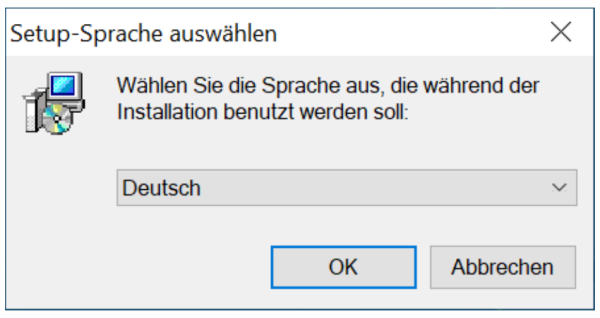
Select the setup language (e.g. German) and confirm.
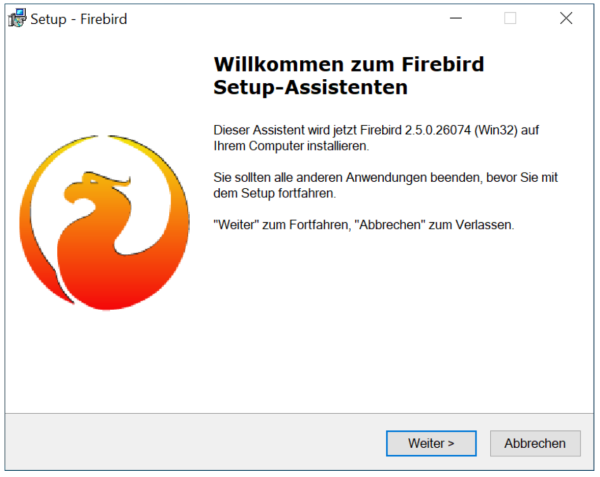
In the Firebird Setup Wizard welcome window (Firebird 2.5.0.26074 (Win32)), click “Next”.
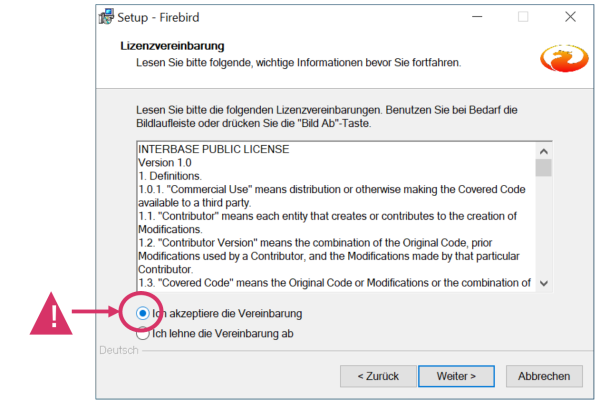
Read the license agreement and select “I accept the agreement”. Then click “Next”.
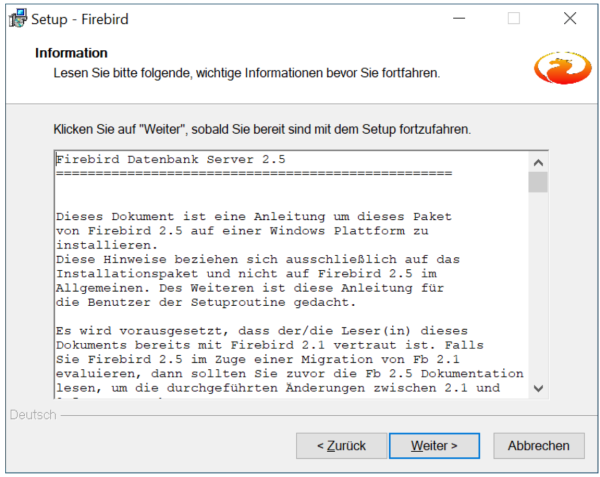
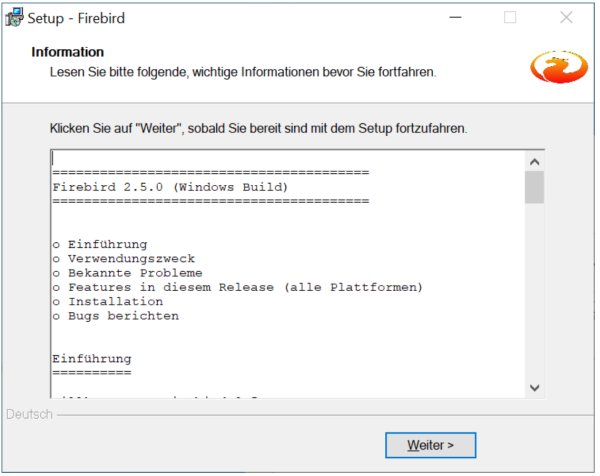
Read the notes/information and click “Next” to continue.
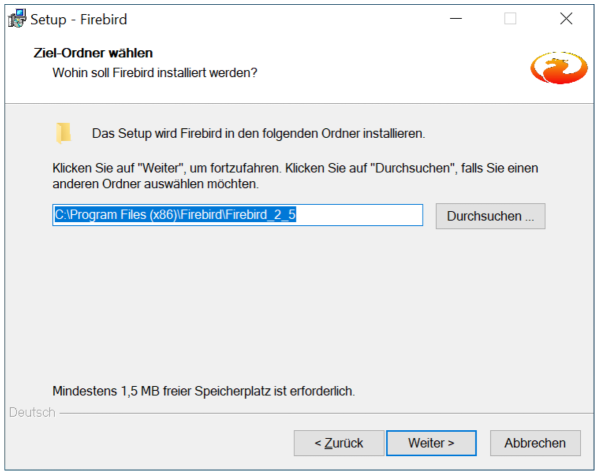
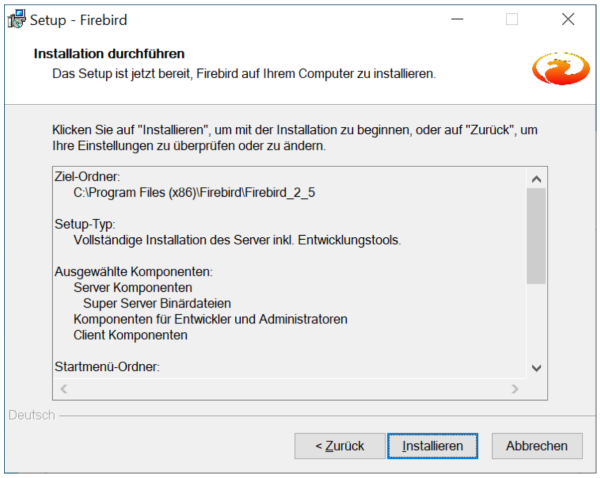
Select the destination folder. The default is: C:\Program Files (x86)\Firebird\Firebird_2_5 Confirm with “Next” (change it via “Browse…” only if required).
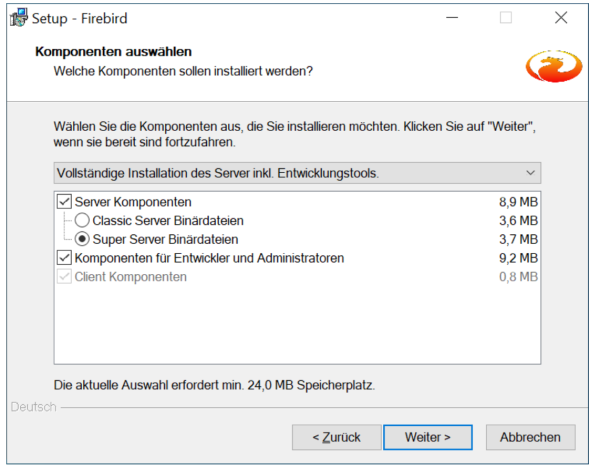
Under “Select Components”, leave the setup type set to “Full installation of Server and development tools.” Important: The server component “Super Server binary” must be selected. Then click “Next”.
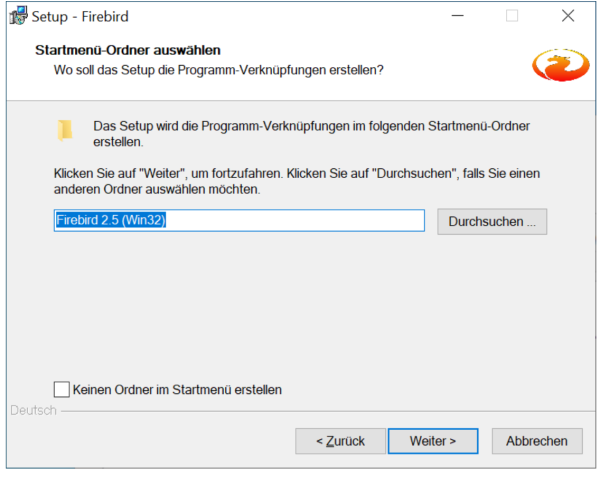
Define the Start Menu folder (default is usually “Firebird 2.5 (Win32)”) and click “Next”.
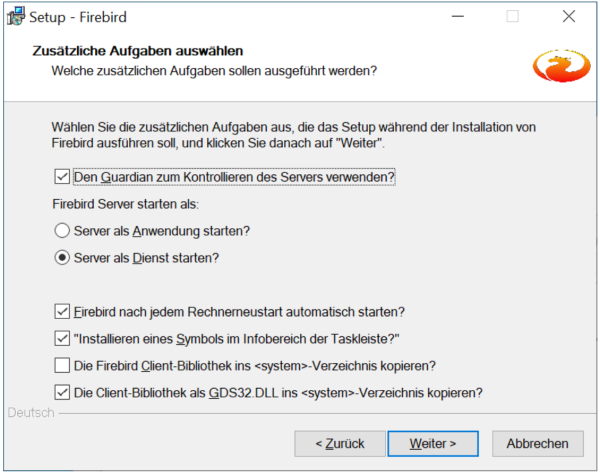
Under “Additional tasks”, make sure the following options are set (as shown in the screenshot):
- Use the Guardian to control the server
- Run the server as a service
- Automatically start Firebird after every system reboot
- Install a Control Panel applet
- Copy Firebird client library to <system> directory (do not enable)
- Copy client library as GDS32.DLL to <system> directory
Then click “Next”.
Start the installation by clicking “Install”.
After installation, an information/readme window may be displayed. Click “Next”.
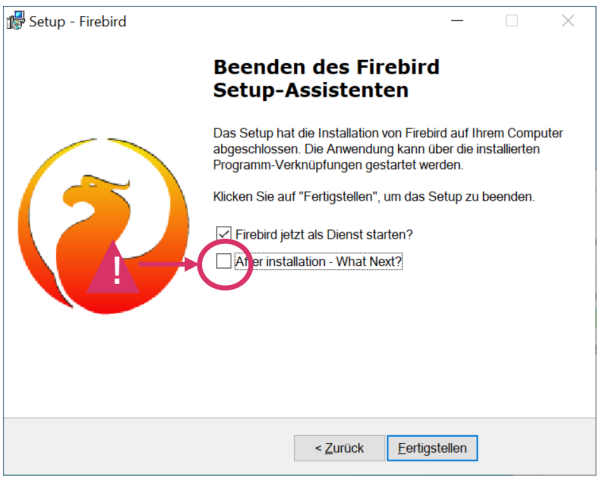
In the final window: - Leave “Start Firebird now?” enabled - Disable “After installation - What Next?” (remove the checkmark) Finish the wizard by clicking “Finish”.