Dies ist eine alte Version des Dokuments!
Installation and Uninstallation
Preliminary Remarks and Important Notes
When using PAM < 2.0, please contact support in advance: software@ktp.upb.de.
If PAM 2.0 or higher is already installed, an existing PAM installation must be uninstalled before performing a new installation. Note: The material databases will remain intact unless you manually delete or overwrite them.
With PAM 3.0, structural changes to the material database were introduced. Therefore, local as well as network databases from earlier versions must first be migrated to PAM 3.0. A detailed description can be found in the section Migration of an older PAM database.
If you are working with a network database that has already been migrated to PAM 3.0 (or higher), all users must update the PAM software to the same major version in order to continue working with that database.
Firebird
PAM uses the relational DBMS Firebird. In order for PAM to access a database, the required Firebird components must be installed on the computer. The 32-bit (x86) variant is mandatory, even if the operating system is 64-bit (depending on the PAM architecture and drivers).
Dongle Driver
To detect the license dongle (Sentinel HASP HL), the appropriate driver must be installed. Installer: HASPUserSetup.exe
The following prerequisites must be met for the installation and operation of PAM:
| Database Server | Requirement | Notes |
|---|---|---|
| Operating system | Windows 11 (64-bit) | |
| Database | Firebird 2.5.9 (Port 3050/TCP) | |
| Additional software components | none | |
| Required permissions | Administrator privileges | required for installation / firewall / service configuration |
| PAM Client | Requirement | Notes |
|---|---|---|
| Operating system | Windows 11 | |
| Additional software components | 1) Firebird Client/Server 2.5.9 (x86) 2) HASP Sentinel Dongle Driver (Sentinel LDK / HASP Runtime) | Firebird components Dongle driver |
| Required permissions | User privileges (operation), administrator privileges (installation) |
Note: If the PAM client is intended to use a local database, the requirements of the database server also apply in addition (local Firebird service, local port / firewall, administrator privileges for setup).
Uninstalling an Existing PAM Version
1. Exit PAM (including any open database connections, if applicable).
2. In Windows, go to: Settings > Apps > Installed apps (or Control Panel) and select the existing PAM version.
3. Run Uninstall.
4. Important: Database files (e.g. *.gdb/*.fdb) are not removed.
Installing PAM
1. Run the setup (right-click and select “Run as administrator” is recommended).
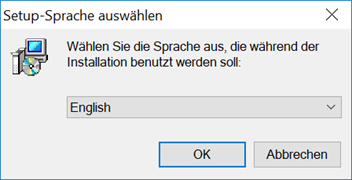
2. Select the language:
3. Complete the installation wizard.
4. Install Firebird ( Firebird components).
5. Install the dongle driver ( dongle driver).
6. Start PAM and configure the database connection (local or network).
Migration of an Older PAM Database (Version < 3.0)
Prerequisites
Extended / administrative privileges are required for the migration.
Please note:
- During migration, the affected material database must not be open in any other program or by any other user (e.g. SIGMA, REX, PSI, or Flame Robin).
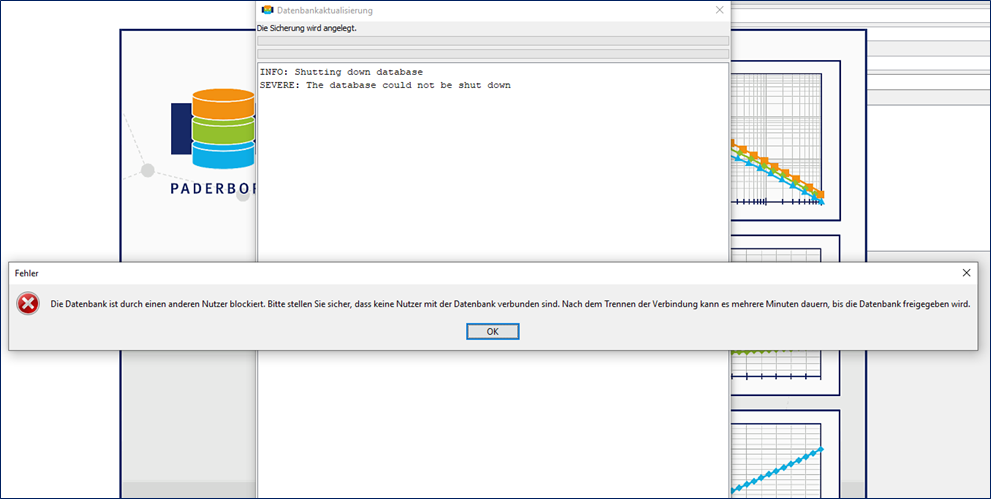
- If the migration is started while another user is still connected, an error message will appear:
Migration Procedure
If you open a database from an older version (e.g. 2.x) in PAM 3.0, an informational dialog will appear:

1. Ensure that there are no other active connections to the database.
2. Click “Upgrade” to start the migration.
3. PAM automatically creates a backup version of the old database (compressed format).
 Typical storage location:
 ''C:\Users\<User>\AppData\Roaming\KTP\PAM2.1\backups\''
 File naming scheme:
 ''<DB-Name>-<BackupDate>-<ID>''
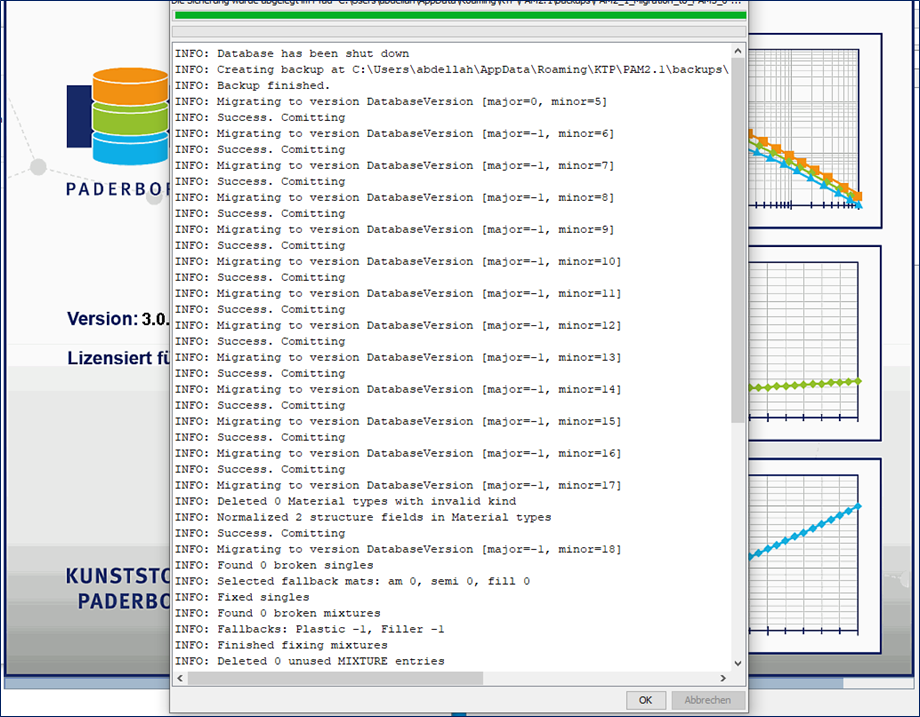
4. PAM then performs the database migration. If completed successfully, the log will look similar to the following example:
Restoring a Backup Database (gbak)
The backup file is stored in a compressed, non-human-readable format. Use the Firebird tool gbak to restore it.
Example:
gbak -r -user SYSDBA -password <Password> "<Path_to_Backup_File>" "<Path_to_Target_Database.fdb>"
Notes:
- gbak is located in the Firebird installation directory under
…\bin\. - Make sure to use the correct quotation marks for paths containing spaces.
- The target path should point to a writable directory.
Upgrading a Material Database from 3.0 to 3.1
PAM 3.1 provides new features that require an adaptation of the database structure. When connecting to a database in 3.0 format, the following message is displayed:
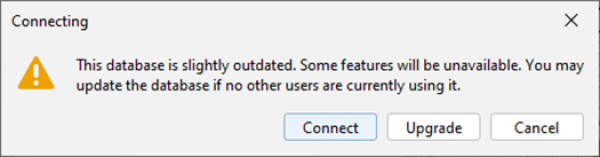
You can still select “Connect”, but not all features may be available. Recommendation: Upgrade the database to the current format (v3.1) using “Upgrade”.
Important notes:
- When using a shared network database, make sure that no other users are connected.
- Administrative privileges are required for the upgrade.
- Only perform the upgrade if the required permissions are available and no other users are affected.
Installing a PAM Database on a Server (Network Operation)
Scenario: PAM stores the material data on an internal server. Users should primarily have read-only access, while only admins may write.
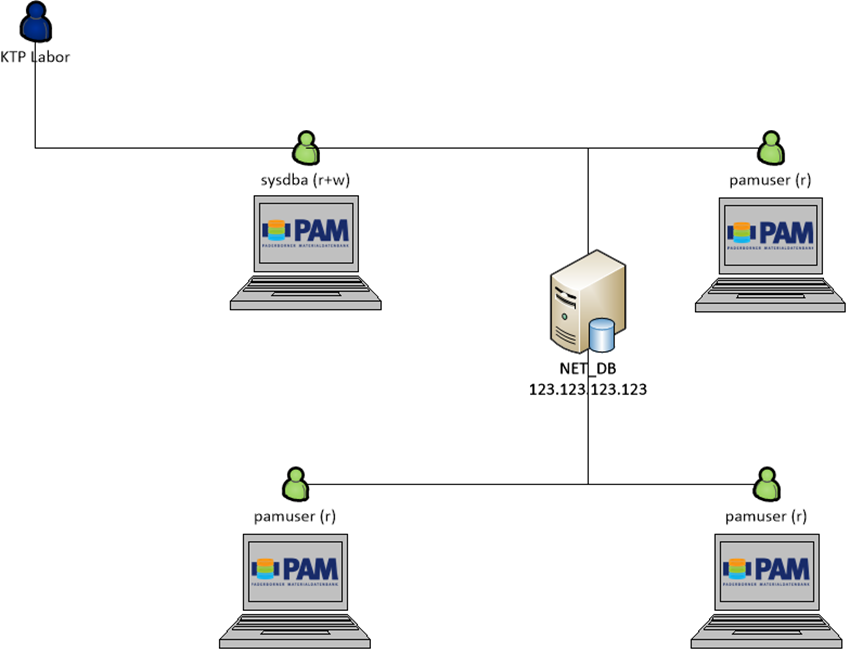
Preparing the Infrastructure (Server)
- Record the server IP (e.g. 123.123.123.123)
- Install Firebird Server (x86) with administrator privileges according to the following instructions.
- Copy the PAM database file to the server, for example:
- Target path:
C:\data\pam\PAM2se.GDB(or *.fdb)
- Configure a Firebird alias (server):
- Open the file
C:\Program Files (x86)\Firebird\Firebird_2_5\aliases.confwith administrator privileges - Add the alias (must match the target path exactly):
- Example:
pam_db = C:\data\pam\PAM2se.GDB
- Add a firewall rule (server):
- Option A (recommended): Allow inbound TCP port 3050
- Option B: Allow the program:
…\Firebird_2_5\bin\fbserver.exe - Grant access at least for Private / Domain profiles in accordance with company policy

Setting Up the Network Database in PAM (Client)
On each PAM client:
1. Open PAM 2. Menu: File → Databases 3. In Database Management, click “Add” and enter the data:
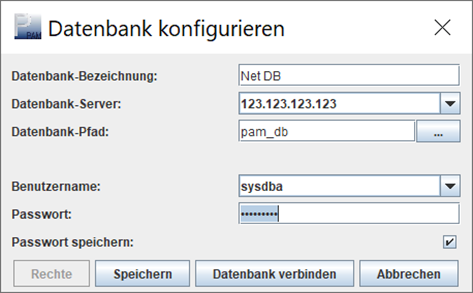
Recommended fields:
- Database name: freely selectable (e.g. “PAM-DB Net”)
- Database server: server IP or hostname
- Database path: alias from
aliases.conf(e.g.pam_db) - Username / password: initially often
sysdba/masterkey(recommended: change the password later)
4. Click “Connect database”.
Users and Permissions on a PAM Network Database
It is often desirable that only certain people may write records, while other users are restricted to read-only access.
User management is performed on the server side in Firebird. An admin tool such as Flame Robin can be used for this purpose: flamerobin.org
**Step 1: Register the database in Flame Robin **
Menu: Database → Register existing database…
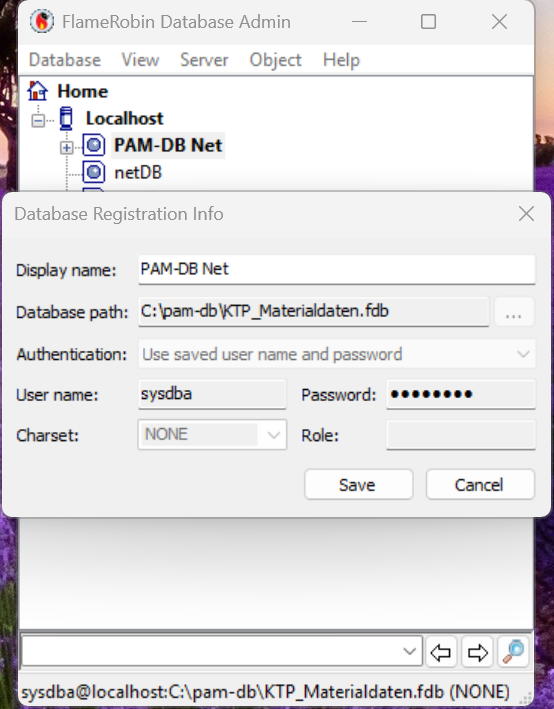
- Display name: freely selectable
- Database path: path to the database file (or alias path, depending on the setup)
- Authentication: saved username / password
- User: sysdba (admin)
- Password: corresponding admin password
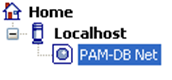
After successful registration, the database appears in the tree view:
**Step 2: Create users and change the SYSDBA password **
Menu: Server → Manage users…
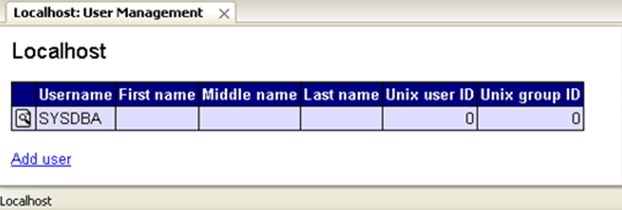
Create a new user:
- Select “Add user”
- Set the username (e.g.
pamuser) and password:

Change the SYSDBA password (recommended):
- Select SYSDBA and open “Modify user”
- Set a new password:
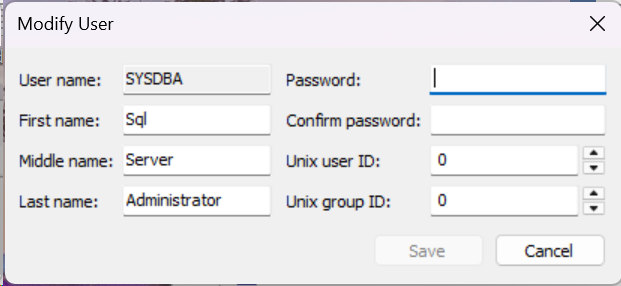
Important: The new password must then also be used in PAM for the database connection.
Client: Enter the Network Database Using the New Credentials
In PAM: File → Databases → Add
- Server: hostname or IP
- Database path: alias (e.g.
pam_net_db)
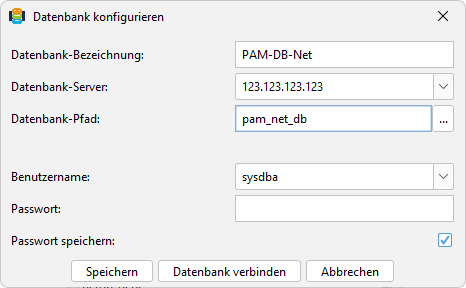
If the SYSDBA password has been changed, you may need to confirm that a connection using the default password is no longer possible.
Problems at Startup / Troubleshooting
Database connection fails
Possible causes:
- Port 3050/TCP is not enabled in the firewall (server and, if applicable, client).
- The Firebird service is not running (server).
- The user does not have write permissions for database migration / upgrade.
If an error message appears during automatic extension / migration, connect once as the database administrator:
- User: sysdba
- Password: masterkey (if not changed)
Dongle Problems
If the dongle driver is installed, diagnostics can be performed using the Sentinel Admin Control Center:
- Open the browser:
https://localhost:1947
Log
In the folder
%APPDATA%\KTP\PAM2.1\pamlog.0.0.log
, PAM logs the program behavior.
Note on Database Migration During Program Startup
- Older material databases are generally upgraded automatically when connected for the first time (PAM 2.2+).
- Starting with PAM 3, the migration wizard starts automatically when an older database version is detected.
- If write permissions are missing, a corresponding error message will appear. In this case: connect once as sysdba and perform the migration.