Setting up PAM
General Information about Activating / Deactivating the Software
As soon the setup is completed, you can start PAM. At the time of the start of PAM a database server needs to be available. If you are using Windows 7, Windows 8, or Windows 10 you should run the database server as a service. Using this option the database will be available independent of a user login. In case of arising problems while connecting to the database, the user should see the port 3050 of the Firewall is enabled. If neither a local nor a network database is available, it is not possible to use PAM.
Users
The older versions of PAM did not distinguish between different users, because the login always takes place via the administrator password. With the new version the user can also log in as database administrator with the given standard password. Moreover, PAM2.1 makes it possible to use different usernames and to apply them on a certain database level with individual rights (for further information cf. Chapter Database-management. For this purpose it is necessary to save individually what the system administrator of these usernames (including password) on each database server which is authorised for each corresponding user.
The use of different usernames has the advantage that, for example, the administrator passwords of the separate database servers need not necessarily revealed. Furthermore, it is possible to prohibit certain users the access into the database or servers.
There is one disadvantage with the use of different usernames, namely the concept can only work and make sense if the already known password (MASTERKEY) of the database administrator (SYSDBA) is changed. If this is the case and when detacting that some of the database do not exist any longer, the routine of the program does not function anymore. Therefore, it is necessary to set the entry expectDatabaselsReachable within the pam.ini as true. Additionally, the entries DatabaseUser and DatabasePassword need to be changed into pamuser and in the Firebird-System the corresponding users should be added.
Starting PAM
If the PAM client is installed on the computer, double-clicking on the PAM shortcut in the PAM directory will start the program. Then the start-window appears and the user can choose one out of the known material database. It is not necessary to enter the name of the requested database, it can be chosen from a selection box.
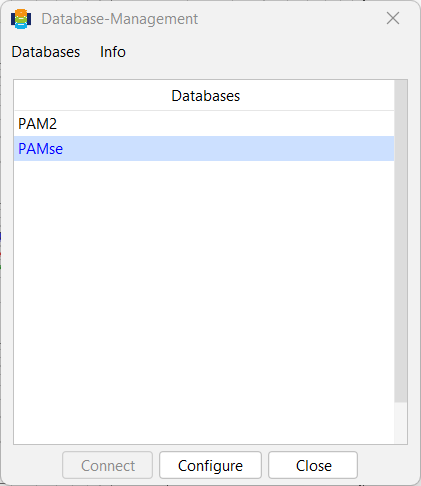
The Databases command can be used to Create, Add, Copy or Delete databases.
Databases that have already been created can also be customised using the Configure function.
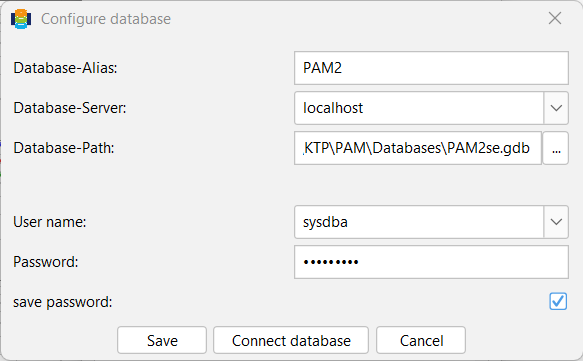
If necessary, additional information may need to be provided, such as the user name and password. However, this is only the case if the default values do not match the required values. The default values are always the last user name used and an encrypted password (see section on databases).